The Ultimate DTF Print Film Tutorial for 2025
Success in DTF printing begins with assembling the correct tools and preparing the digital file properly. This foundational step ensures a smooth workflow from design to finished product. Operators must gather all necessary equipment and consumables before starting. They also need to configure their designs correctly in specialized software for optimal print quality.
Gathering Your DTF Equipment and Consumables
A complete DTF setup includes several key components. The process is impossible without them.
Note: Investing in quality supplies from the start prevents many common printing issues. Cheap consumables can lead to poor adhesion, color inaccuracies, and reduced durability.
Here is a checklist of the essential items:
- DTF Printer: This specialized inkjet printer is designed to handle DTF inks and films.
- DTF Inks: A set of CMYK and White textile pigment inks is required. The white ink creates an opaque base layer on the film, allowing designs to show up on dark fabrics.
- DTF Print Film: These are PET (polyethylene terephthalate) sheets, available in rolls or cut sheets. They come in cold peel or hot peel varieties, which dictates the removal process after heat pressing.
- DTF Adhesive Powder: This polyurethane powder acts as the glue. It melts and binds the printed ink to the garment's fibers during the heat press stage.
- RIP Software: Raster Image Processor (RIP) software is crucial. It processes the design file, manages color profiles, and controls the white and color ink layers for printing.
- Curing Oven or Heat Press: A dedicated curing oven is ideal for melting the adhesive powder evenly. A heat press can also perform this task using its hover function.
- Heat Press: This machine uses heat and pressure to transfer the design from the film to the fabric.
- Safety Gear: Always use safety glasses and a respirator mask when working with adhesive powder to avoid inhalation.
Preparing Your Design File in RIP Software
Proper file preparation in RIP software is critical for a professional-grade DTF transfer. This software gives the operator precise control over the final output.
First, operators import their design, which should be a high-resolution file (300 DPI is recommended) with a transparent background. Common file formats include .png, .tif, and .psd.
Next, they must mirror the image within the software. The design is printed in reverse on the DTF print film so it appears correctly when transferred to the shirt.
Pro Tip: Use the RIP software's color management tools to ensure color accuracy. The on-screen colors may not perfectly match the printed output without proper ICC profile settings.
The most important function of the RIP software is managing the ink layers. It automatically generates a white ink underbase for the colored parts of the design. This ensures the colors are vibrant, especially on dark garments. Operators can adjust the white ink density, often called "choke," to prevent it from peeking out from behind the color layer. A typical choke setting is 1-2 pixels.
// Example RIP Software Settings
Image: Mirrored Horizontally
Resolution: 300 DPI
White Ink Density: 70-100%
Color Ink Density: 60-80%
White Underbase Choke: 1-2 pixels
Once all settings are confirmed, the file is ready to be sent to the DTF printer. This careful preparation prevents errors and material waste.
Step 1: Essential Supplies and Design Preparation
An exceptional DTF print starts long before the printer whirs to life. It begins with meticulous preparation, from gathering the right supplies to fine-tuning your digital design file. This foundational stage is crucial; it sets the entire workflow up for success and prevents costly errors down the line. Operators must ensure they have all the necessary equipment and consumables on hand. They also need to configure their designs correctly in specialized software to achieve optimal print quality and vibrancy.
Gathering Your DTF Equipment and Consumables
A complete DTF setup requires several key components. The process is impossible without them. Operators should assemble a checklist to ensure they have everything ready before starting a print job.
Note: Investing in quality supplies from the start prevents many common printing issues. Cheap consumables can lead to poor adhesion, color inaccuracies, and reduced durability of the final product.
Here is a checklist of the essential items:
- DTF Printer: This specialized inkjet printer is designed to handle DTF inks and films.
- DTF Inks: A set of CMYK and White textile pigment inks is required. The white ink creates an opaque base layer on the film, allowing designs to show up on dark fabrics.
- DTF Print Film: These are PET (polyethylene terephthalate) sheets, available in rolls or cut sheets. They come in cold peel or hot peel varieties, which dictates the removal process after heat pressing.
- DTF Adhesive Powder: This polyurethane powder acts as the glue. It melts and binds the printed ink to the garment's fibers during the heat press stage.
- RIP Software: Raster Image Processor (RIP) software is crucial. It processes the design file, manages color profiles, and controls the white and color ink layers for printing.
- Curing Oven or Heat Press: A dedicated curing oven is ideal for melting the adhesive powder evenly. A heat press can also perform this task using its hover function.
- Heat Press: This machine uses heat and pressure to transfer the design from the film to the fabric.
- Safety Gear: Always use safety glasses and a respirator mask when working with adhesive powder to avoid inhalation. 🥽
Preparing Your Design File in RIP Software
Proper file preparation in RIP software is critical for a professional-grade DTF transfer. This software gives the operator precise control over the final output, directly impacting the quality of the print on the dtf print film.
First, operators import their design, which should be a high-resolution file. They must mirror the image within the software. The design is printed in reverse so it appears correctly when transferred to the shirt.
Pro Tip: Use the RIP software's color management tools to ensure color accuracy. The on-screen colors may not perfectly match the printed output without proper ICC profile settings.
The most important function of the RIP software is managing the ink layers. It automatically generates a white ink underbase for the colored parts of the design. This ensures the colors are vibrant, especially on dark garments. Operators can adjust the white ink density, often called "choke," to prevent it from peeking out from behind the color layer. A typical choke setting is 1-2 pixels.
For optimal results, operators should configure specific settings:
- Resolution: Set the resolution to 1440x720 DPI for a balance of precision and speed.
- White Ink Density: Adjust this to 180%–220% for bright colors and full coverage.
- Ink Saturation: Maintain color saturation between 85%–90% for rich tones without oversaturating the film.
Once all settings are confirmed, the file is ready to be sent to the DTF printer. This careful preparation prevents errors and material waste.
Step 2: Printing on DTF Print Film and Applying Powder
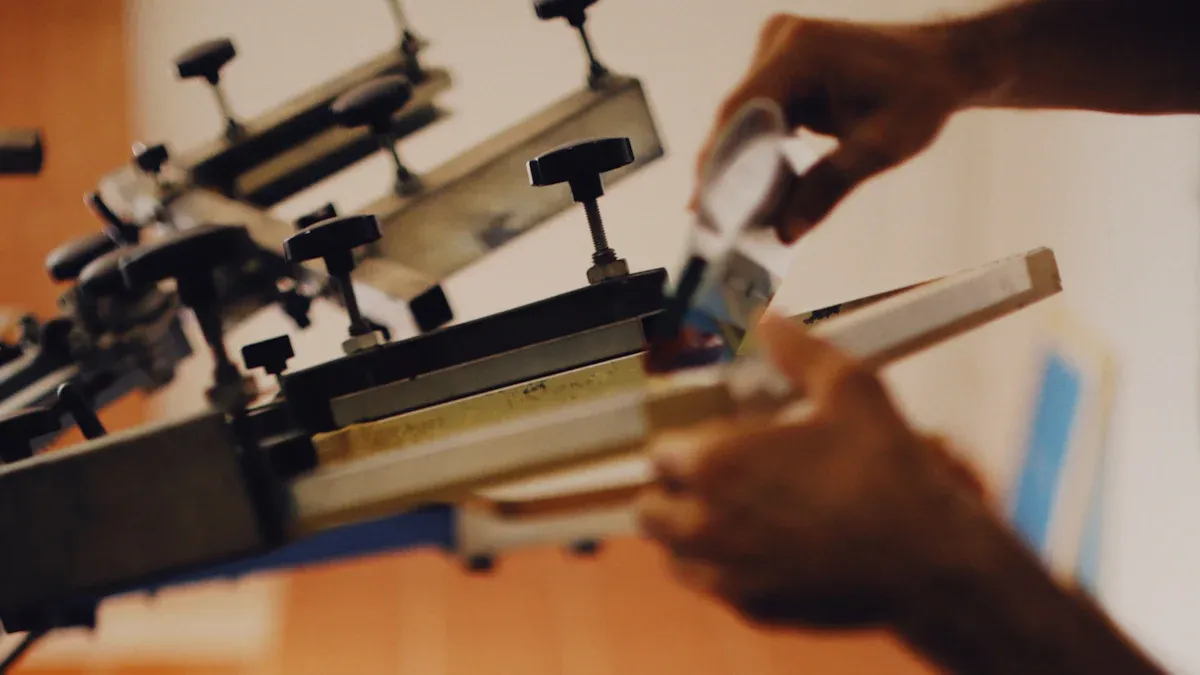
With the design file prepared, the operator moves to the production phase. This stage transforms the digital file into a tangible transfer ready for pressing. It involves two critical actions: printing the design onto the film and then applying and melting the adhesive powder. Precision here is paramount for creating a durable and vibrant final product.
Printing Your Mirrored Design
The printing process begins by sending the prepared file from the RIP software to the DTF printer. Operators must first ensure the dtf print film is loaded correctly. The film has a specific printable side, which typically has a matte finish. Placing it incorrectly will result in the ink failing to adhere.
The printer then lays down the ink in a specific sequence. It first prints the CMYK color layer directly onto the film. Immediately after, it prints the white ink layer on top of the colors. This white underbase is what makes the design opaque and vibrant on any color garment.
Environment is Key: The room's climate significantly impacts print quality. Operators should control the ambient conditions to prevent common issues like ink bleeding or banding.
- Maintain humidity between 40-45% to ensure the ink flows correctly and adheres well.
- Keep humidity below 60% to aid the upcoming curing process.
Once the printer finishes, the operator should handle the printed film carefully by its edges to avoid smudging the wet ink. The design is now a mirror image of the final graphic, covered in a fresh layer of ink.
Applying and Curing the Adhesive Powder
This step bonds the ink to the garment. The operator applies a special polyurethane powder to the wet ink, which then melts to become a powerful adhesive.
First, the operator places the freshly printed film in a shallow tray or powdering station with the inked side facing up. They generously pour the DTF adhesive powder over the entire design, ensuring complete coverage. They then lift the film and gently shake it to remove all excess powder. The powder will only stick to the wet ink, leaving the non-printed areas of the film clean.
Safety First! ⚠️ DTF adhesive powder is a fine particulate that can become airborne. Operators must take strict safety precautions to protect their health.
- Personal Protective Equipment (PPE): Always wear a tight-fitting N95 mask, sealed eye protection, and disposable gloves. A lab gown and hair cover are also recommended.
- Ventilation: Work in a well-ventilated area. Use a high-volume fan to blow air out of a window or door. Performing this step in a garage or shed can limit fumes and powder from entering living spaces.
- Cleanliness: Maintain a clean workspace. Promptly clean up any powder residue and shower after finishing to remove any particles from skin and hair.
Next, the operator must cure the powder. Curing melts the white, grainy powder into a smooth, semi-transparent layer. This can be done with a dedicated curing oven or a heat press. The goal is to achieve a texture that resembles an orange peel, which indicates the adhesive is properly melted.
| Curing Method | Temperature | Time |
|---|---|---|
| Curing Oven | 230-250°F (110-120°C) | 2-3 minutes |
| Heat Press (Hover) | 325-350°F (163-177°C) | 3-5 minutes |
If using a heat press, the operator should set it to the correct temperature and let it hover about half an inch above the transfer without making contact. Over-curing can damage the adhesive, while under-curing will lead to poor adhesion during the final press. Once cured, the transfer is stable, ready for storage, or immediate application to a garment.
Step 3: Heat Pressing the Transfer and Final Care
The final stage of the DTF process brings the design to life on the garment. This step involves transferring the cured design from the film to the fabric using a heat press. Success depends on precise settings, a proper peeling technique, and a final post-press to lock in the design. Following the correct procedures here ensures a durable, professional-quality product that stands up to washing and wearing.
Heat Press Settings for Different Fabrics
Operators must adjust heat press settings based on the garment's material composition. Incorrect temperature, time, or pressure can lead to poor adhesion or damage to the fabric. Before pressing, it is wise to pre-press the garment for 5-7 seconds to remove moisture and wrinkles.
The following table provides a general guide for common fabrics. Operators should always test a small, inconspicuous area first.
| Fabric Type | Temperature | Time | Pressure |
|---|---|---|---|
| 100% Cotton | 300-320°F (149-160°C) | 10-15 seconds | Medium-Firm |
| 50/50 Cotton/Poly | 280-300°F (138-149°C) | 8-12 seconds | Medium |
| 100% Polyester | 260-280°F (127-138°C) | 8-10 seconds | Medium |
| Tri-Blends | 250-270°F (121-132°C) | 7-10 seconds | Light-Medium |
Caution with Heat-Sensitive Fabrics: Materials like tri-blends, which contain polyester and rayon, are highly susceptible to heat. Excessive temperature can scorch the fabric, leaving a permanent, shimmery box where the heat platen made contact. Operators must use lower temperatures and shorter press times to prevent this damage.
Peeling the Film and Post-Pressing
After the initial press, the operator must remove the dtf print film. Films are categorized as either cold peel or hot peel.
- Cold Peel: The operator must let the garment and film cool down completely before peeling. Peeling while warm can ruin the transfer.
- Hot Peel: The operator can peel the film away immediately after the press is finished.
Once the film is removed, the design is on the shirt, but the process is not complete. A final press, known as a post-press or finishing press, is essential for improving durability and customizing the texture. This second press melts the ink further into the fabric fibers and gives the design its final look.
Operators can achieve different finishes by using a cover sheet during the post-press. The material of the cover sheet directly impacts the final texture.
| Cover Sheet Material | Resulting Finish |
|---|---|
| Parchment Paper | Creates a soft, non-reflective matte finish. |
| Teflon (PTFE) Sheet | Creates a smooth, shiny satin or glossy finish. |
To perform the post-press:
- Place the appropriate cover sheet (parchment for matte, Teflon for glossy) over the exposed design.
- Press again at the same temperature for 6-10 seconds with firm pressure.
- Remove the cover sheet to reveal the finished transfer.
Washing and Drying Your DTF T-Shirt
Proper aftercare is critical for maximizing the lifespan of a DTF-printed garment. Customers should receive clear instructions to ensure their custom apparel remains vibrant and intact for years to come. Following these guidelines will prevent cracking, peeling, and fading.
Washing Instructions: 🧼
- Turn the garment inside out before washing.
- Use a cold water setting on a gentle cycle.
- Wash with mild detergent and similar colors.
- Avoid using bleach or fabric softeners.
Drying Instructions:
- Tumble dry on a low heat setting. For best results, hang the garment to air dry.
- Do not iron directly on the printed design. If ironing is necessary, turn the garment inside out and use a low heat setting.
Operators achieve perfect DTF t-shirts by mastering the three core steps: Print, Powder, and Press. Professional, durable results depend on proper powder curing and accurate heat press settings, which helps avoid common mistakes. Following this guide for dtf print film ensures operators can consistently produce high-quality custom apparel.
FAQ
Why is my DTF transfer not sticking to the shirt?
Poor adhesion often results from incorrect heat press settings. Operators should verify the temperature, pressure, and time. Under-cured adhesive powder is another common cause of transfer failure.
Always pre-press the garment. This simple step removes moisture and creates a smooth surface for better adhesion.
Can I use a regular inkjet printer for DTF?
No, operators cannot use a standard inkjet printer. DTF requires specialized printers, inks, and RIP software. These components handle the white ink layer and print correctly on PET film.
See Also
Leading Precoating Materials Revolutionizing Filtration Systems: A 2025 Outlook
Innovative Folder Gluer Features Shaping 2025 Carton Production Lines
Automatic UV Coaters: Indispensable for Achieving Peak High-Speed Printing Efficiency
WT20 Thoriated Tungsten Electrodes: Enhancing TIG Welding Performance Significantly
Comprehensive Nozzle Solutions for Gardeners, Bioprinters, and Lubrication Professionals